> ## Documentation Index
> Fetch the complete documentation index at: https://waybeyond.mintlify.site/llms.txt
> Use this file to discover all available pages before exploring further.
# How do I export crop registration data?
In FarmRoad Crop Registration Web, you can export both generated averages and individual records.
All recorded crop registration data can be exported in CSV format.
## On the averages page
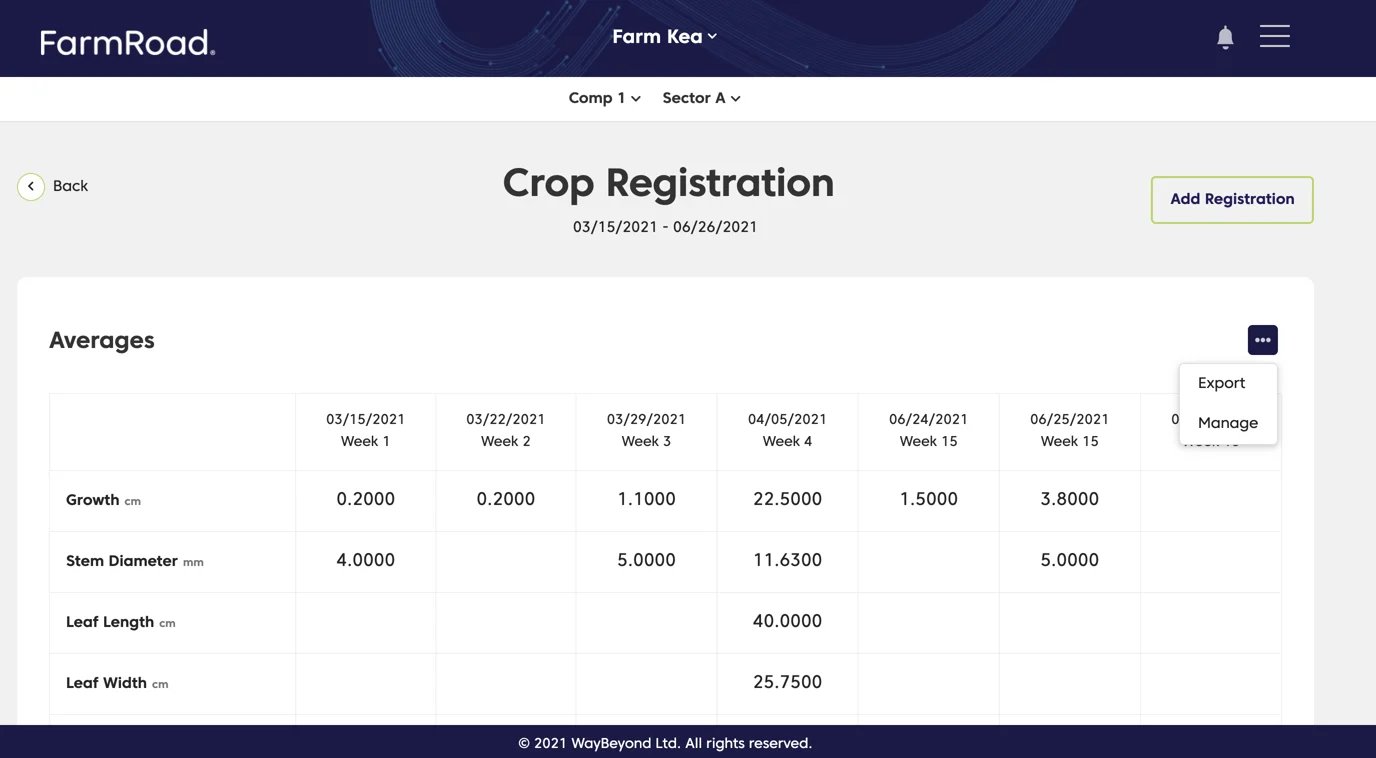
1. Click the overflow menu (**…**) in the top right of the averages table.
2. Select **Export**.
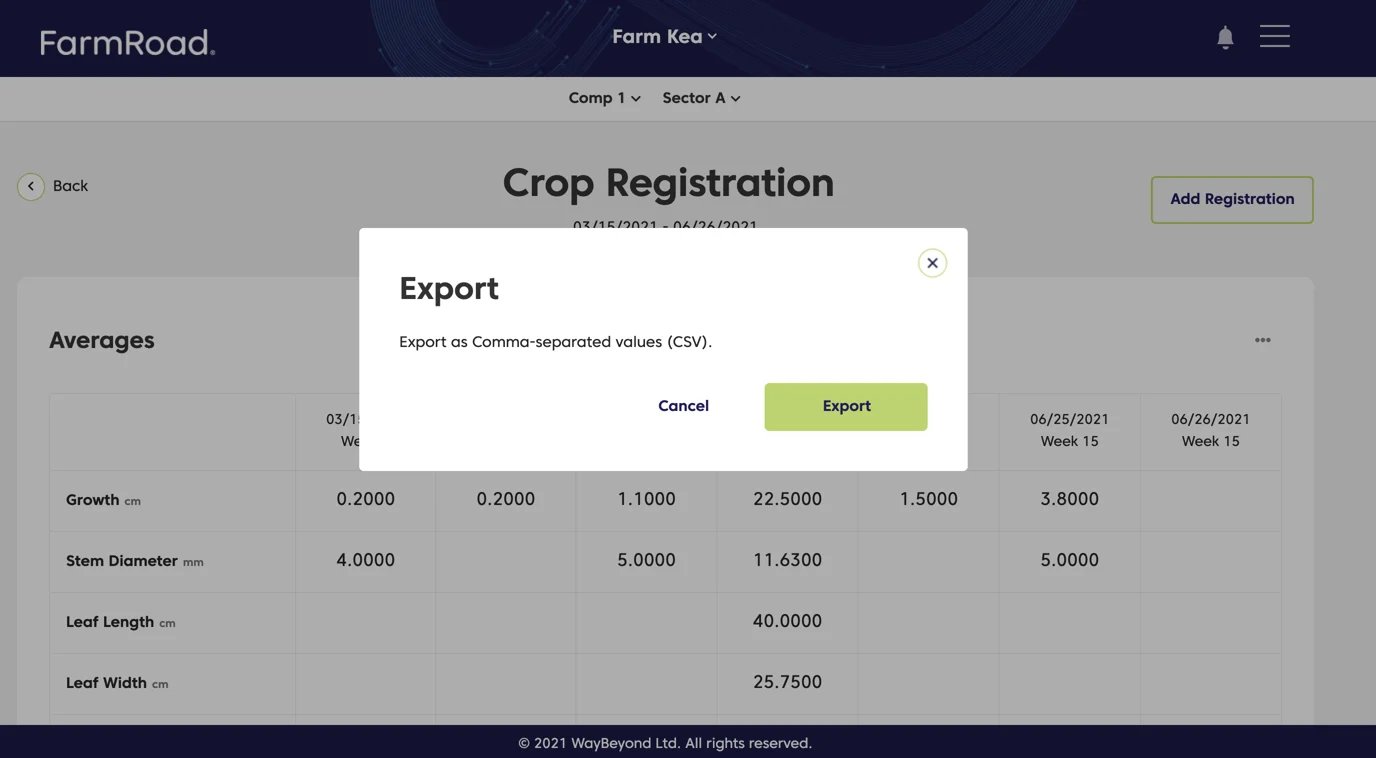
3. Click **Export** in the modal.
4. Select where you want the file to be stored.
5. Download the CSV file.
## On the individual records page
1. Navigate to **Crop Registration**.
2. Click the individual record you want to export.
3. Click the overflow menu (**…**) on the record table.
4. Select **Export**.
5. Click **Export** in the modal.
6. Select where you want the file to be stored.
7. Download the CSV file.