> ## Documentation Index
> Fetch the complete documentation index at: https://waybeyond.mintlify.site/llms.txt
> Use this file to discover all available pages before exploring further.
# How do I export my data from FarmRoad?
## CSV Export From Data Studio
FarmRoad Data Studio allows you to easily export data to CSV format from any graph.
### Exporting data from a graph
1. Go to **Data Studio**
2. Select the dashboard you wish to export from
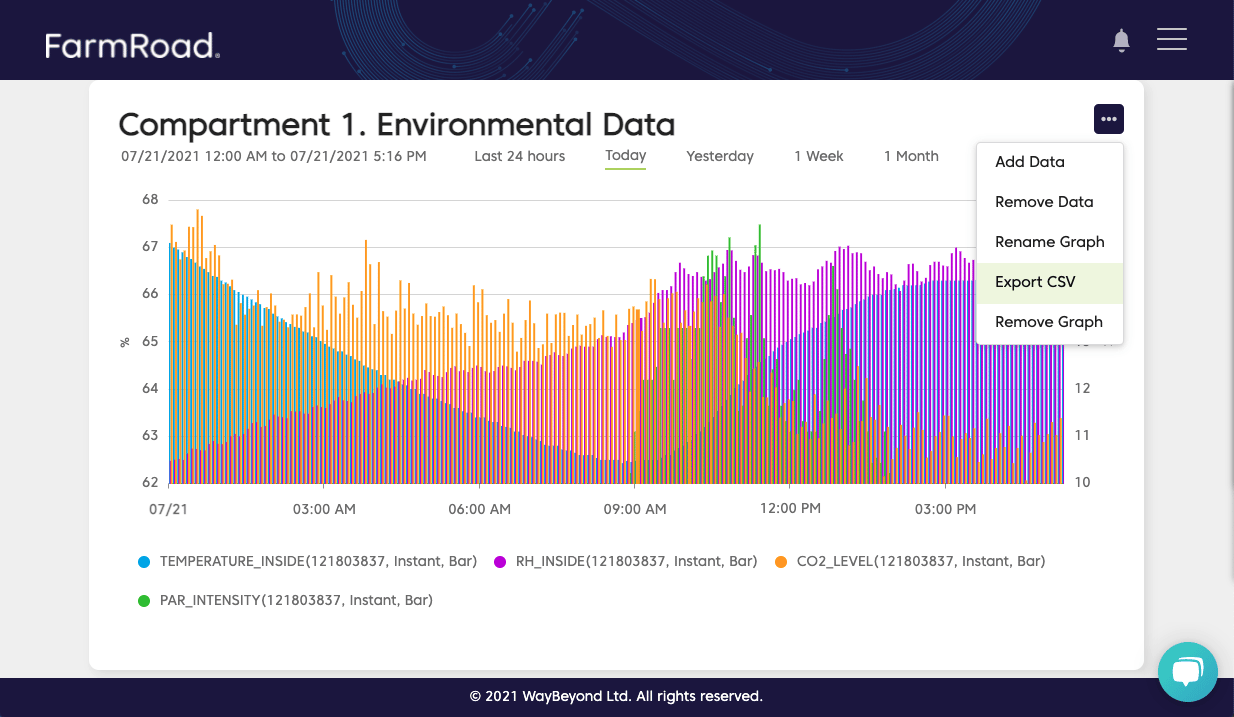
3. Click the options menu and select **Export CSV**
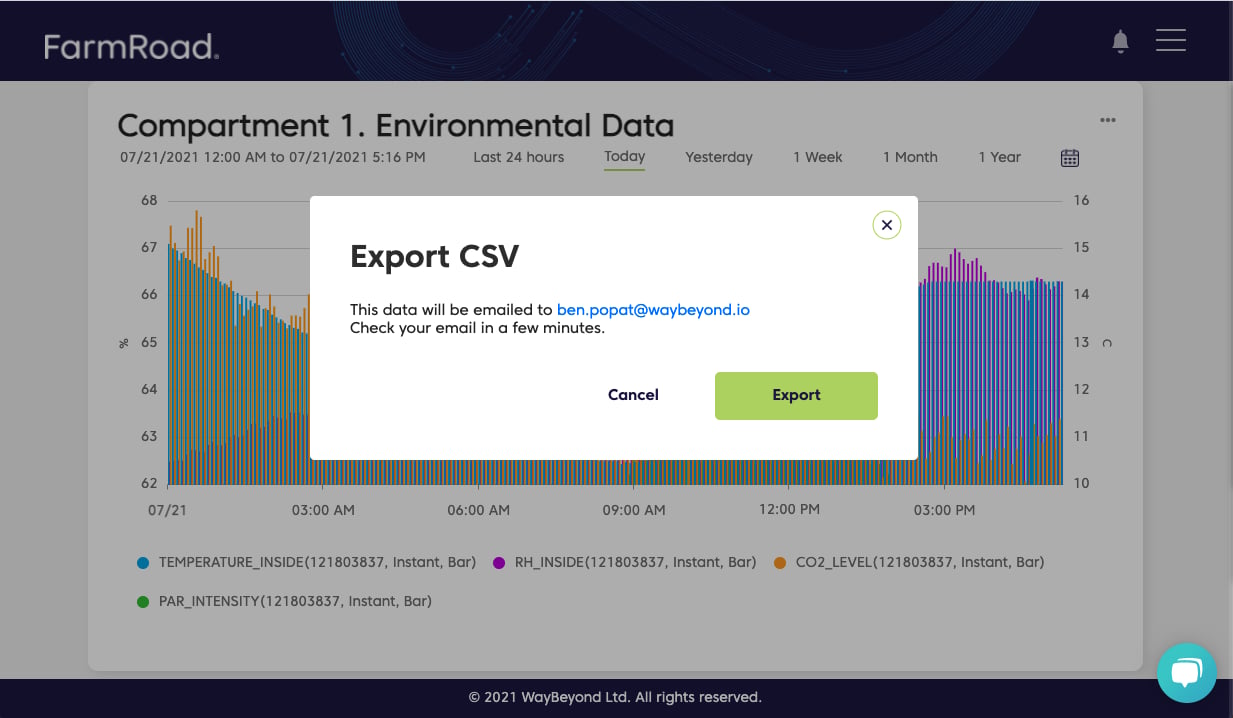
4. You will be presented with a pop-up that allows you to export the data
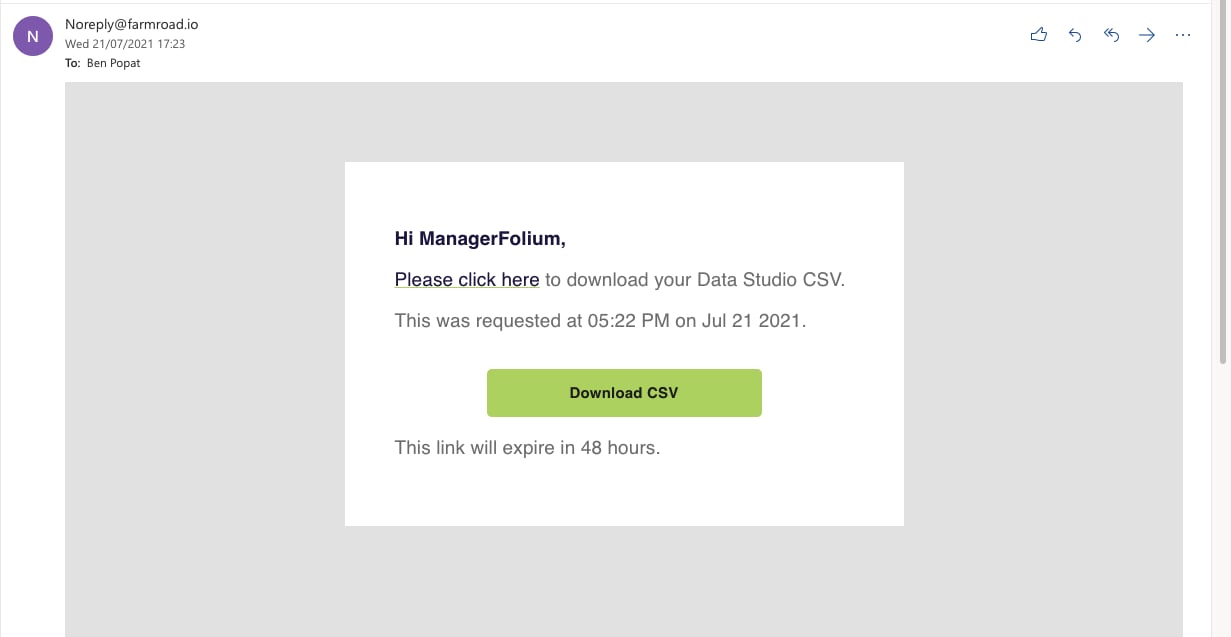
5. The CSV export will be emailed to the user that is logged in
 The pop-up will show which email address the CSV will be emailed to.
 The email will contain an option to 'Download CSV'.
 Freqiemty asked Questions about
## Frequently asked questions about exporting data from a graph
Data can be exported by admins and the user who originally created the graph.
All of the data sets that were selected in the graph will be included in the export. The CSV exports date range will also be the same as the one selected in the graph.
The CSV export will show data in 10-minute intervals.
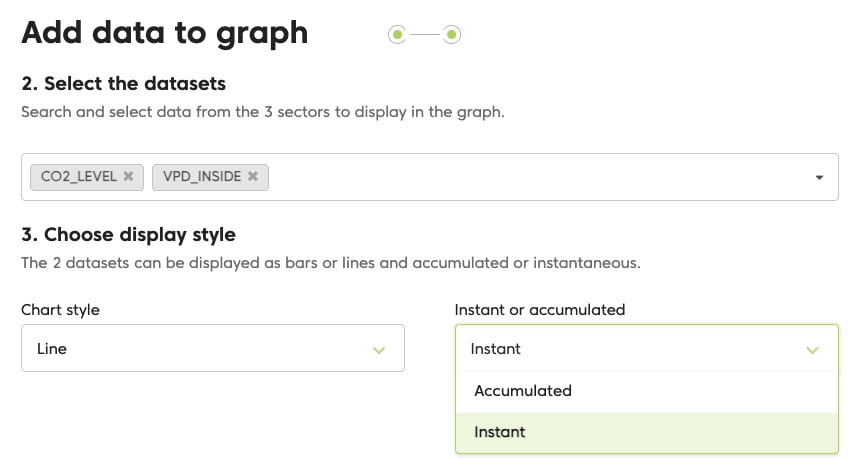
All measurement types can be exported from a graph into a CSV. The export supports 'instant' readings and not 'accumulated':
Freqiemty asked Questions about
## Frequently asked questions about exporting data from a graph
Data can be exported by admins and the user who originally created the graph.
All of the data sets that were selected in the graph will be included in the export. The CSV exports date range will also be the same as the one selected in the graph.
The CSV export will show data in 10-minute intervals.
All measurement types can be exported from a graph into a CSV. The export supports 'instant' readings and not 'accumulated':